



Quick Tips…
Are Your Wrists Bending While You Type?
Quick Fixes to Relieve Wrist Strain and Prevent Carpal Tunnel
The Ideal Setup: Hands, Wrists And Keyboards
Keep your wrists straight and in a neutral position aligned with your forearms. Position your keyboard and mouse close so your elbows stay at a comfortable 90 to 100-degree angle without extending or bending your wrists upward.
Workora’s Take
Repetitive strain creeps in silently when your wrists are forced into awkward angles for hours on end. Good ergonomics isn’t just about your back and shoulders—maintaining a neutral, flat wrist position and protecting the carpal tunnel prevents nerve compression, forearm fatigue, and long-term repetitive strain injuries during heavy typing sessions.
Quick Cues to Check Your Wrist and Hand Position

1. Arm Angle > Check your wrists are flat.
Keep your wrists straight and flat, aligned naturally with your forearms to avoid any upward extension or downward bending while typing.

2. Keyboard Slope > Check your keyboards tilt.
Keep your keyboard flat or sloping slightly away from you. Avoid using rear keyboard legs to tilt it upward, which forces your wrists into an uncomfortable backward bend.

3. Carpal Tunnel > Check your wrist position.
Avoid anchoring your wrists hard against the desk edge or palm rest while actively typing. Hover lightly and only use supports during pauses.

4. Movement Breaks > Check for tension.
Take a conscious moment every hour to shake out your hands, stretch your fingers, and gently flex your wrists to relieve repetitive strain.
Quick Adjustments

1. Keep your wrists neutral.
Align your hands straight with your forearms, avoiding any upward or downward bending while resting or typing on your keyboard and mouse.
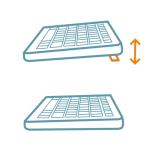
2. Adjust your keyboard tilt.
Keep your keyboard flat or sloping slightly away from you, avoiding the rear keyboard legs so your wrists aren’t forced into an awkward backward extension.

3. Avoid anchoring wrists.
Avoid pressing your wrists hard against the sharp desk edge or palm rest while typing; hover your hands lightly and use palm rests only during short pauses.

4. Take wrist relief breaks.
Set a regular reminder every hour to pause, gently shake out your hands, stretch your fingers, and flex your wrists to relieve repetitive strain.
Why This Matters
Forcing your wrists into awkward angles or keeping them compressed against hard desk edges for hours puts constant pressure on the carpal tunnel and forearm tendons, leading to chronic strain, numbness, and fatigue. Maintaining a neutral, flat wrist posture and taking regular micro-breaks preserves your hand health, comfort, and focus throughout the workday.
FAQ’s
Achy or numb wrists usually stem from continuous wrist extension (bending upward), resting your wrists hard on a sharp desk edge, or gripping your mouse too tightly, all of which compress the median nerve and strain the tendons.
Palm rests should only be used to support your palms during pauses in typing. Resting your wrists or palms directly on them while actively typing anchors your hand in place and forces your fingers to reach, increasing tendon strain.
Keep your wrists neutral and straight, flatten your keyboard slope instead of using rear tilt legs, position your mouse close to avoid reaching, and take regular hourly breaks to stretch and shake out your hands.
While standard advice often pushes for a strictly level wrist-and-elbow alignment, real-world ergonomics can be counter-intuitive. If a level setup leaves your wrists aching, raising your hand position slightly—such as using a supportive mouse pad with a built-in wrist rest that places your wrist higher than your elbow—can completely relieve forearm strain and clear up discomfort in just a few weeks.
Related Quick Tips
Quick Tips: Is Your Keyboard in the Right Position?