



Quick Tips…
Is Your Laptop Screen at Eye Level
Quick Adjustments for Laptop Ergonomics
The Ideal Setup: Laptop Elevation and Alignment
Keep your head level and your shoulders relaxed by elevating your laptop screen and separating your input devices. Position your external keyboard and mouse close so your arms maintain a natural angle, preventing neck strain and shoulder shrugging during long sessions of deep focus.
Workora’s Take
Physical strain creeps in silently when your neck and shoulders are forced to look down and hunch over an unraised laptop for hours on end. True ergonomics isn’t just about an expensive chair—elevating your display to eye level and separating your keyboard protects your posture, relieves neck tension, and keeps your focus sharp throughout long work sessions.
Quick Cues to Check Your Posture and Movement
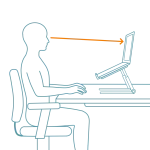
1. Screen Height > Check your eye level.
Place your laptop on an adjustable stand so the top third of the screen aligns with your eyes. Looking straight ahead prevents the chronic neck strain caused by hunching downward.
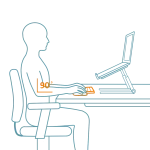
2. Peripheral Setup > Check your arm angles.
Pair your raised laptop with an external keyboard and mouse. Keep your elbows resting at a comfortable 90-to-100-degree angle with your shoulders relaxed.
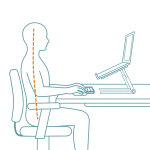
3. Posture Alignment > Check your upper body.
Avoid jutting your chin forward or slumping into your lower back as you work. Keep an upright, balanced spine with your shoulders back and down.
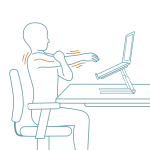
4. Micro-Breaks > Check for muscle tension.
Take a conscious moment every hour to step away, roll your shoulders, and stretch your neck to release the physical tension built up during deep-focus work.
Quick Adjustments to Check Your Posture Rhythms
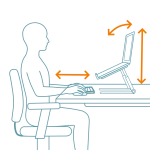
1. Set your screen height.
Place your laptop on an adjustable stand or riser so the top third of the display aligns with your eye level. Raising the screen prevents chronic neck strain caused by looking downward for hours.
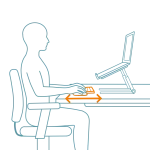
2. Calibrate peripheral placement.
Pair your elevated laptop with an external keyboard and mouse. Ensure your elbows rest comfortably at a 90 to 100-degree angle with your shoulders relaxed and your wrists neutral.
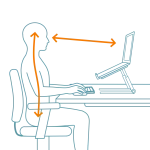
3. Maintain neutral alignment.
Keep an upright, balanced spine with your shoulders back and down. Avoid jutting your chin forward or slumping your upper back toward the screen; keep your head stacked directly over your torso.
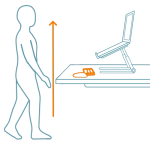
4. Stand up to reset.
Take a conscious moment every hour to step away completely. A quick stretch or short walk resets your joints and relieves upper body tension more effectively than working continuously on an unadjusted laptop.
Why This Matters
Statically holding your neck and head downward to view an unraised laptop places continuous, cumulative strain on your cervical spine, neck, and shoulders. This leads to upper body fatigue, stiffness, and digital strain. Elevating your screen and using external peripherals preserves your physical comfort, structural alignment, and long-term workspace stamina.
FAQ’s
Your laptop screen should be elevated on a stand or riser so that the top third of the display aligns with your eye level. This eliminates the need to tilt your neck downward.
Separating your input devices allows you to keep your elbows at a comfortable 90 to 100-degree angle while maintaining a neutral wrist posture and relaxed shoulders.
Stepping away regularly resets your posture, relieves upper-body tension, and gives your neck muscles a break from static holding positions.
Chronic neck stiffness, shoulder shrugging, aching upper traps, and eye fatigue are primary indicators that your laptop screen is too low or your peripherals are misaligned.
Related Quick Tips
Quick Tips: Is Your Keyboard in the Right Position?