



Quick Tips…
How to Position Dual Monitors Correctly
Try these simple 2‑minute checks to Prevent Neck Strain
The Ideal Setup: Distance, Height, and Angle
Position dual monitors 20 to 30 inches (50–75 cm) from your eyes with the tops of the screens at or slightly below eye level. If you use one screen 70% of the time, place it directly in front of you. If you use both screens equally, touch their inside edges together directly in front of your nose, forming a slight 30-degree “V” shape toward you.
Workora’s Take
A dual-monitor setup should expand your focus, not strain your neck. Structuring your screens around how you actually divide your work keeps your gaze soft, your posture naturally aligned, and your head centered through the day.
Quick Cues to Check Your Dual Monitor Setup
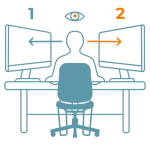
1. Check your primary focal point.
If you use one screen 70% of the time, align it directly in front of your keyboard. Resting your secondary screen off to the side keeps your neck relaxed and avoids constant twisted strain.
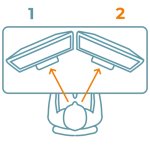
2. Check the gap and angle between screens.
Pull the inner edges of both monitors close together to eliminate wide gaps. Angle them inward slightly in a soft “V” shape so your eyes move smoothly without excess head panning.

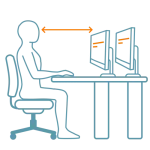
3. Verify your viewing distance.
Extend your arm straight out toward the screens while seated back. Your fingertips should just sweep the center of both displays (20–30 inches away) to prevent leaning forward.
4. Align screen height and text scale.
Match the vertical centers of both screens so your line of sight stays level. If small text on a secondary screen forces you to squint, boost your OS text scaling rather than pulling the monitor closer.
Quick Adjustments

1. Tilt both screens back slightly.
Angle both displays back by 10° to 15°. This prevents overhead light reflection and ensures your line of sight hits the center of each panel at a natural, perpendicular angle.

2. Equalize color and brightness.
Match the brightness and display profile settings on both screens. Big shifts in color temperature or brightness when glancing between panels cause rapid eye fatigue.

3. Align vertical centers for different sizes.
If running mixed screen sizes (e.g., a 27″ and 24″), align them by their vertical center points in display settings, rather than top or bottom edges, to keep your gaze level.

4. Fine-tune cursor speed & transitions.
Increase cursor tracking speed in OS settings so moving between dual screens requires minimal wrist strain, and align virtual display arrangements to match physical height.
Why This Matters
Repeatedly turning your neck to view an unaligned second screen subjects your cervical spine to subtle rotational strain over several hours. Aligning your dual monitors to match your primary workflow keeps your neck in a neutral zone, reduces eye tracking fatigue, and prevents cumulative tension through long work sessions.
FAQ’s
Dual monitors should always be angled slightly inward toward you in a subtle “V” shape (around 30 degrees) rather than set completely flat side-by-side. Angling them keeps both displays at an equal viewing distance from your eyes and eliminates excessive head rotation.
If you use one screen more than 60–70% of the time, that screen must sit directly centered in front of your keyboard. The secondary screen should sit off to your non-dominant side. Only center the gap between both screens if you divide your screen time 50/50.
Dual 27-inch monitors should sit between 24 and 30 inches (60–75 cm) away—roughly one full arm’s length. Because two large panels cover a wider field of view, setting them too close forces unnecessary neck movement when scanning between edges.
Related Quick Tips
Quick Tips: Is Your Screen at the Right Distance?